

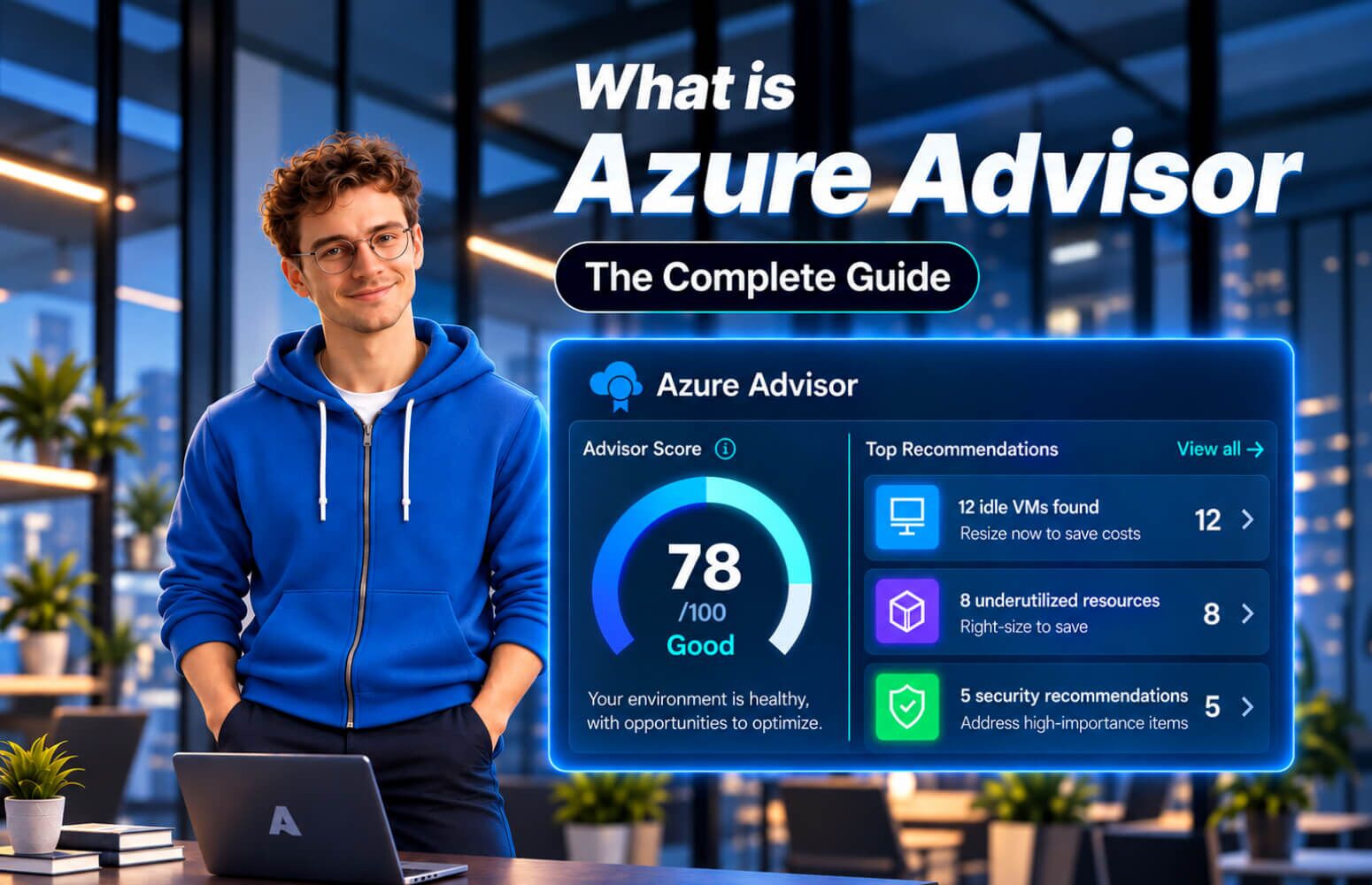
Why Azure environments need continuous cost optimization?
In the world of fast-paced cloud computing, Azure environments rarely remain static for any length of time. As organizations modernize applications, migrate the legacy system and adopt massive AI-driven workloads, their cloud estates grow in scale and complexity at a rapid pace. That growth brings with it a predictable set of challenges, from cloud costs that are increasing and often hard to understand, to performance bottlenecks that are hard to diagnose, security misconfigurations that can raise risk exposure and reliability gaps that can have a direct impact on business continuity.
Modern clouds cannot be just the part where things are deployed, but rather they need to stand for continuous optimization. This is where Azure Advisor comes in play. Basically, in the simplest of terms, it is Microsoft’s built-in, personalized cloud consultant. It performs an automated “health check” of your environment, scanning your resources, telling you what exactly is wrong, and how to fix it. While it is spread across a number of domains, the Cost Optimization module is arguably the most used feature today. In the era where “doing more with less” is corporate mantra, the power to find and eliminate waste immediately is the number one priority of cloud stakeholders.
 TL;DR: One-Minute Brief
Azure Advisor is Microsoft’s built-in cloud consultant that continuously analyzes your Azure environment and provides recommendations across cost, performance, security, reliability, and operational excellence. Its Cost module helps identify idle, underutilized, and misconfigured resources to reduce spend. However, Advisor has limitations such as single-subscription visibility, lack of automation, and no business ownership mapping. Tools like Turbo360 extend Advisor by offering centralized visibility, deeper cost intelligence, automation, and FinOps-grade reporting for enterprises and MSPs.
What is Azure Advisor?
Azure Advisor is a native, digital consultant that uses telemetry of your resource configuration and usage to provide your personalized recommendations. Its main task is to assign your infrastructure to the Microsoft Azure Well-Architected Framework. By offering onsite guidance, Advisor makes sure that your cloud environment is not only good, but efficient, safe, and resilient.
Azure Advisor in the FinOps Lifecycle
In the FinOps (Cloud Financial Operations) lifecycle, Azure Advisor is an underlying tool. It retains its existence mainly in the “Inform” and “Optimize” phases. It provides the granular data points necessary for teams to comprehend where their money is going and it identifies the low hanging fruit for reduction in cost. Unlike manual audits which only reflect a picture of what’s happening at a single point in time, Advisor is “always on,” and continuously compares your live environment to Microsoft’s set of internal benchmarks for best practices. It bridges the gap between raw data and business decisions and provides the engineers with the technical evidence they need to justify changes in certain architectural decisions to finance teams.
Azure Advisor Modules Overview
To offer a 360 degree look into your cloud health, Advisor groups its insights into 5 critical pillars:
- Cost: This is the biggest factor behind being efficient, finding underutilized resources and recommending ways to save on your monthly bill without sacrificing quality.
- Performance: This module is responsible for ensuring your applications are as smoothly running as possible. It looks for bottlenecks and suggests SKU upgrades or changes to the network to improve the speed.
- Security: Deeply integrated with Microsoft Defender for Cloud, this pillar to harden your resources from cyber threats & configuration drift.
- Reliability: Formerly known as High Availability, this module is concerned with the business continuity, ensuring your services remain online in the case of outages in a region or failures of hardware.
- Operational Excellence: This module helps you to manage your environment like a pro, where deployment efficiency, resource organization and governance.
Azure Advisor Cost Module: What’s In It?
The financial engine or money-making machine in Azure Advisor is the Cost module. It is programmed to provide maximum value for each dollar spent on Azure. It works by keeping track of your resource (compute, memory, and network telemetry) use for some rolling window of time (typically 7 to 30 days).
How Azure Advisor Calculates Potential Savings
Advisor calculates “potential savings” from the identification of resources that are either over-provisioned (too big for the job) or idle (doing nothing at all). It then compares your level of expenditure on those items at the moment with what a recommended and more efficient configuration would cost. For example, if you have a Virtual Machine that costs $500 per month but only consumes 3% of its power, according to Advisor, the advisor calculates how much money you would save if you switched to a $100 per month alternative. This gives a clear, prioritised list of actions for stakeholders to use to take back their budget.
Azure Advisor Recommendations for Cost
Diving deeper into the specifics here are the most common ways Advisor helps you save money. Read more about Azure advisor cost recommendation best practices here.
Right-Size Virtual Machines that are Underutilized
Cloud “over-provisioning” is a runaway problem Engineers tend to choose larger VM sizes “just in case.” Advisor keeps track of these VMs; if the CPU utilization is very low (below 5%) and there is minimal network usage for a prolonged period, Advisor marks this VM for rightsizing. It will recommend a particular SKU downgrade, such as the downgrade from a D-series to a burstable B-series VM, which ensures that you are only paying for what you actually use.
Identify Idle Virtual Machines
Idle resources are the silent killers of a cloud-budget. Advisor finds out stopped but not deallocated VMs. In Azure if you shut down a VM from within the OS, Microsoft still counts the hardware as reserved for you and you’re still charged! Advisor also flags VMs which are technically “on” but have had zero activity for days. Shutting these down appropriately can translate to 100% savings on these particular compute costs.
Purchasing Reserved Instances (RI)
For stable predictable workloads that run 24 hours a day, Pay-as-you-go is the most expensive way to buy. Advisor uses your 30-day usage history to give you recommendations on Reserved Instances. By committing to 1 year or 3 year period, you can save up to 72% on resources such as VMs, SQL Databases and App Service plans.
Purchase Savings Plans
A newer offering, Azure Savings Plans for Compute, is more flexible than RIs. While RIs typically are associated with specific regions or instance families Savings Plans apply a discount on a range of compute services across the world based on an hourly spend commitment. Advisor helps you determine which model is better based on how dynamic your source of resources need is.
Remove un-attached and Orphaned Resources
When a VM is deleted, every so often the associated parts linger behind, unmolested, furiously accruing charges. Advisor finds:
- Unused Disks: Unattached managed disks
- Unused Public IPs: Addresses which are being billed without assigning them to a resource.
- Idle NICs: Network interfaces that are no longer in use.
- Unused Gateways: ExpressRoute or VPN gateways which are not processing traffic.
How to Access the Cost Recommendations of Azure Advisor
It is a simple matter to access these insights based on technical preference:
- Azure Portal: This is the graphical dashboard which is the most common entry point that provides a visual summary and “Quick Fix” buttons to make changes instantly.
- Azure Advisor API: Best for those who are developers or automation experts and would like to pull the data of the recommendations into internal company reports or custom monitoring tools.
- CLI and PowerShell: Perfect for infrastructure-as-code teams who require the ability to export large lists of recommendations for auditing across hundreds of subscriptions.
How Accurate are Azure Advisor Cost Savings Estimations?
While Advisor’s math is pretty good in most cases, what is important to understand is the nuance behind the numbers. The savings estimates are usually retail prices (Pay-As-You-Go). If your organization has a special deal with certain vendors in the form of a custom Enterprise Agreement (EA) with special discounts, the numbers in the portal may be higher than what you actually save.
This accuracy is also influenced by seasonality. Because Advisor would instead usually look back at only the last 7 to 30 days, it would potentially recommend downsizing a VM which is currently “quiet” but will be under heavy load during a quarterly reporting period or a holiday sale. Always ensure that the business context is valid before clicking “apply.”
Limitations of Azure Advisor Cost Module
As useful as it is, however, Advisor has structural gaps that large organizations and MSPs will need to solve:
- Single-Subscription Visibility: By default, it’s not easy to get the unified visibility across 50+ subscriptions.
- Historical Depth: It lacks historical data over a long period of time to lead to complex forecasting.
- No Business Context: Advisor does not know whether a “low-utilization” VM is actually an important disaster recovery node that should not be shut down.
- No Native Automation: Advisor is telling you what to do but it’s not automating the execution of it in scale.
- Ownership Gaps: It cannot tell you what department “owns” the waste and will make it impossible to hold specific teams accountable.
Performance Module of Azure Advisor
The module of Performance is all about how fast and what the user experience is. It identifies resources that are under stress for their current load. For a case, if your Application Gateway is reaching its throughput capacity, Advisor will recommend a SKU upgrade. It also recommends migrating to Premium SSDs for latency-sensitive databases, as well as identifying network configurations that could be slowing down your cross-region traffic.
Azure Advisor- Security Module
Security is now built-in with Microsoft Defender for Cloud. It scans for “low-hanging fruit” vulnerabilities such as open RDP/SSH ports that can lead to brute force attacks. It also identifies the lack of Multi-Factor Authentication (MFA), unencrypted storage accounts, and old operating systems. According to these recommendations, an organization can maintain a strong security posture against ever-evolving threats.
Reliability Azure Advisor Module
It is reliability that is the mainstay of “keeping the lights on.” Advisor recommends architectural modifications to avoid downtime including implementation of Availability Zones to safeguard against data center failures. It also evaluates your backup state, if you have a critical SQL database that is not being backed up to a different region, it will be identified as a high-priority risk to your business continuity by Advisor.
Azure Advisor Operational Excellence Module
This module is the “pro-tips” part of Azure. It helps you implement the best practices of governance, for example, use Azure Policy to enforce resource tagging. It also finds legacy resources (such as older API versions) which should be migrated to more modern equivalents for long-term support and easier manageability.
Azure Advisor vs cost management azure
It is very easy to confuse these two, but their roles are different:
- Azure Cost Management is for tracking and analysis. It tells where the money went (billing, budgets, and forecasting).
- Azure Advisor is for optimizing and doing things. It informs you of how to spend less time in the future by reconfigure resources.
Think of Cost Management – your bank statement and Advisor – your financial planner. Read a detail guide on Azure Advisor Vs Azure Cost Management Vs Turbo360.
Azure Advisor vs. Third Party Cost Optimization Tools
While Advisor is a great starting place, enterprise grade tools like Turbo360 cost analyzer have greater functionality:
- Advanced Discovery: Often resources that are considered to be “zombie” resources (old snapshots, idle dev test labs etc.) are spotted by third-party tools, but not by Advisor.
- Cross-Cloud Visibility: If you use AWS and Azure, then 3rd party tool offers you a single pane of glass.
- Automation: They will help you to make “Self-Healing” workflows such as deleting the unattached disk automatically after 30 days of inactivity.
How Turbo360 Expands Azure Advisor Capabilities
Turbo360 takes the raw signals from Azure Advisor and turns them into a reality for the large enterprises and MSPs.
- Centralized Visibility: Turbo360 centralizes recommendations from hundreds of subscriptions in a single unified dashboard so you don’t have to go through each and every portal view.
- Advanced Cost Optimization: It not only goes beyond simple compute metrics it finds complex patterns of waste that Advisor ignores.
- Automated Remediation: Turbo360 can be set up to automatically detect and notify you of cost spikes or idle resources in real-time, so that you can “set-and-forget” governance.
- FinOps-Ready Reporting: It provides executive level reporting to show not only “potential” savings, but the actual realized ROI of your optimization efforts.
Real World Scenario and Use Cases of Azure Advisor
- Rightsizing: A technology firm has used Advisor to find 40 over-provisioned VMs, cutting their monthly bill by $4,000 with no one complaining of a performance issue.
- Reservations: An MSP used RI recommendations to assist a client in migrating their steady-state database workloads to using a 3-year reservation to save them $80,000 a year.
- Cleanup: A development team used Advisor to search for and delete $1,500 worth of unclaimed managed disks that had been left over from a previous project that ended six months ago.
The Best Practices of Azure Advisor
To really get your money’s worth of Advisor, you must have a routine:
- Review Frequency: Review your recommendations at least on a weekly basis. Cloud environments are changing on a daily basis; waste is accumulating rapidly.
- Tagging and Ownership: Use resource tagging. When Advisor says “delete this VM” then you need to know who created it so that you can check that it is not needed.
- Validation: Always validate the last 30 days of performance data prior to downsizing of a resource. Don’t be fooled by one week of “quiet” into less provisioning critical app.
Azure Advisor Checklist
Use this checklist to maintain a healthy, cost-effective environment:
- Weekly: Review all “High Impact” Cost recommendations.
- Monthly: Validate VM utilization and rightsize where possible.
- Monthly: Evaluate new Reserved Instance and Savings Plan opportunities.
- Quarterly: Audit security and reliability scores to ensure no configuration drift.
- Always: Use a tool like Turbo360 to automate the detection of waste across multiple tenants.


