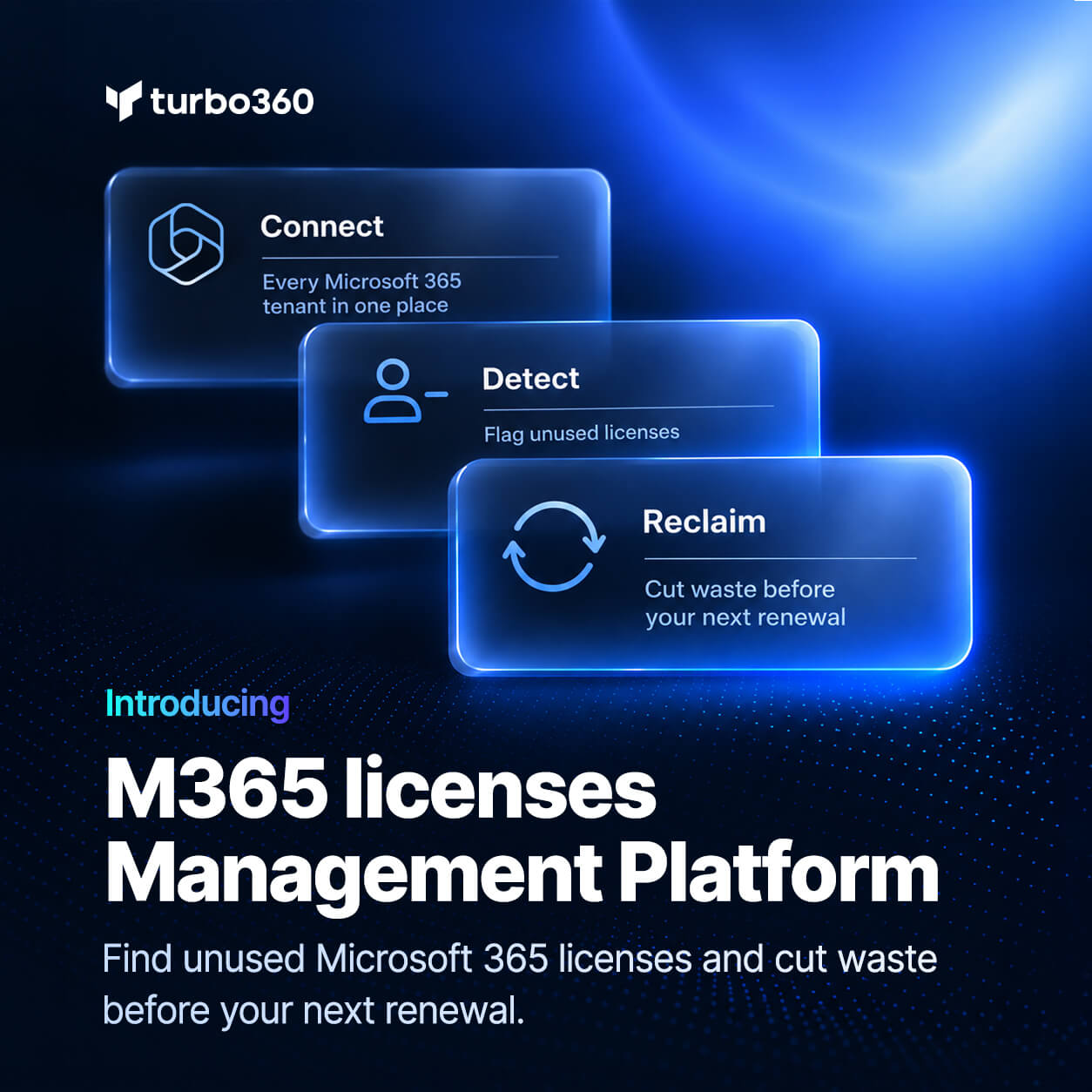

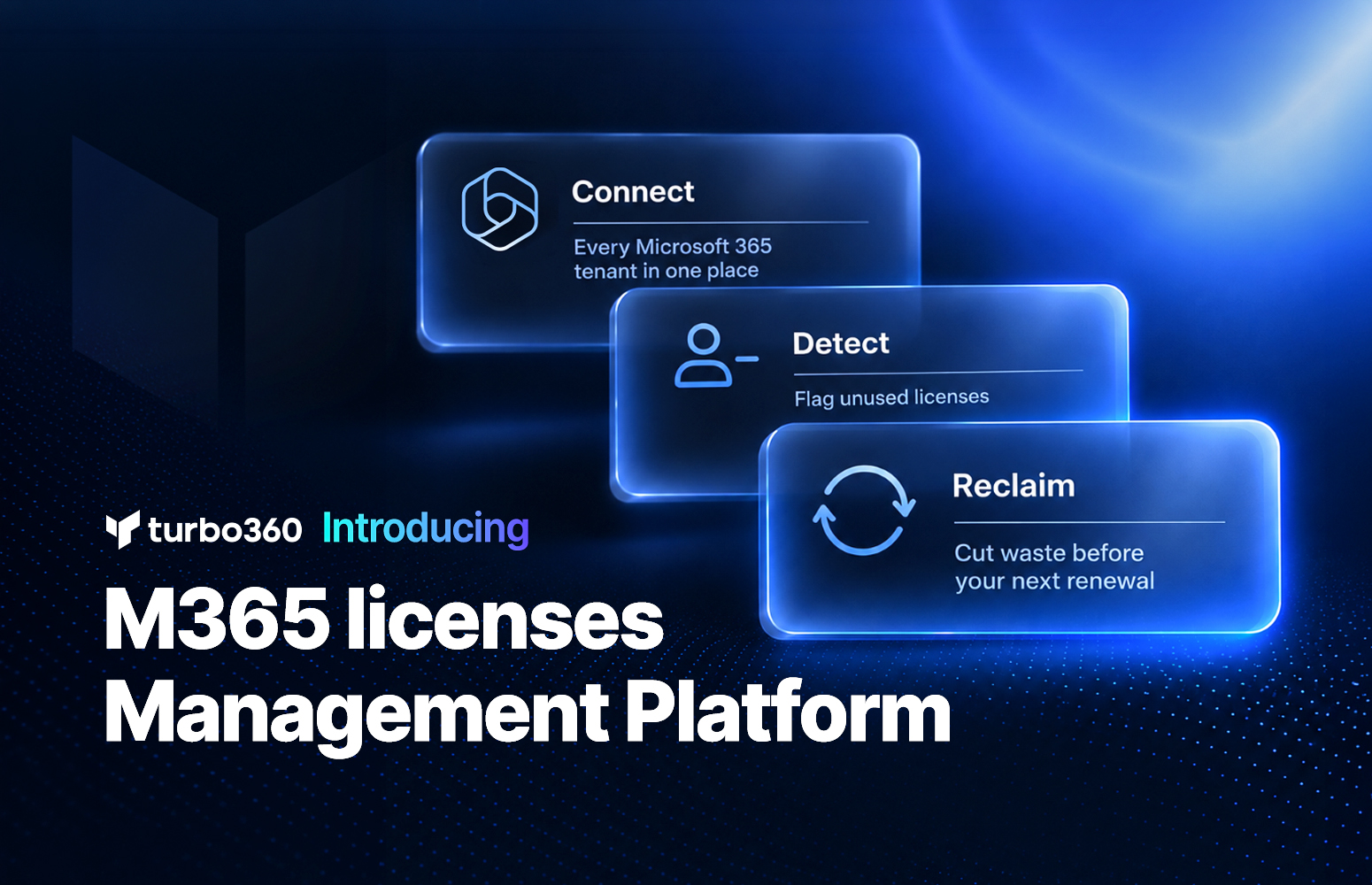
Today we’re launching Tenant Manager, Microsoft 365 license management built into Turbo360.
For years, Turbo360 has helped teams understand and control what they spend on Azure. But for most organizations, Azure is only part of the Microsoft bill. Microsoft 365 licenses are often just as large a line item, and far harder to keep in check, because they’re spread across thousands of users, dozens of license types, and renewal dates nobody has on their calendar.
Tenant Manager brings that spend into the same platform. It shows you where your Microsoft 365 licenses are going to waste, recommends exactly what to change, and lets you make those changes with approval and a full record, so nobody loses access by surprise.
Why we built Tenant Manager
Ask most Microsoft 365 teams whether they pay for licenses nobody uses, and the answer is usually some version of “probably.” Many have even exported a report to prove it. But the bill rarely changes.
The problem was never finding the waste. It was everything that came after:
- Deciding what to change. A sign-in date alone doesn’t tell you whether a license is safe to remove, or whether someone on E5 could move to E3.
- Making the change without breaking things. Licenses assigned through groups can’t be removed from the user directly, and nobody wants to be the person who cut off a senior manager’s mailbox.
- Getting the savings onto the invoice. Removing a license frees a seat, but you keep paying for it until you reduce the subscription. On annual NCE subscriptions, that can only happen within seven days of purchase or at renewal.
Tenant Manager is designed to close that gap, from “we’re probably wasting money” to “the seats are cut, and the change is on record.”
What’s inside Tenant Manager
Tenant Manager is organized into five areas, each answering a different question.
Overview: how much are we wasting?
The Overview splits every paid seat into three states: active, idle (assigned but not used), and unassigned (bought but never given to anyone). Next to each, you see what it costs every month and the total you could save.
Below that, the top ten license wastages show which licenses have the most unused seats, and a Needs attention feed lists what to look at first, in plain language: paid seats with no sign-in for 90 days, license types assigned to nobody, groups with no owner, people who could move to a cheaper license, and subscriptions coming up for renewal.
Explore: who and what is behind the numbers?
Explore lets you drill down from a cost figure to the people, groups, and subscriptions behind it.
- Users: filter to inactive users, people who have never signed in, disabled accounts, guests, or users without MFA. Department, job title, and last activity sit next to license data.
- Groups: see which groups assign licenses, which use dynamic membership, and which have no members or no owner.
- Licenses: every license type with purchased, assigned, and unassigned seats, utilization, and renewal date. Trial seats are kept separate so they don’t distort the picture, and you can set your own price for each license so costs match what you actually pay.
- Change tracking: a record of license changes, account lifecycle events, and group changes, including the ones that failed.
Optimization: what should we change?
Optimization turns what you’ve found into recommendations, and every recommendation shows its reason.
- Users: reclaim licenses from disabled, inactive, or never-signed-in accounts, or move people to a cheaper plan when their actual usage shows they don’t need what they have. Dedicated filters cover idle Copilot seats and users with overlapping licenses, and licenses that come from a group are flagged so you fix the group instead.
- Groups: remove stale members from groups so licenses stop flowing to people who no longer need them.
- Licenses: see how many seats to cut from each subscription before it renews, combining unassigned seats with seats you can reclaim. Licenses that are fully used are flagged too, so you can plan ahead instead of running out.
Alerts: what should we hear about before it costs us?
Alerts cover both sides of license management: waste and continuity. You can be notified about disabled users with licenses, inactive users with licenses, seat shortages, licenses close to expiry, and the connection secret Turbo360 uses to read your tenant.
Reports: what do we share with finance?
Three reports cover users, licenses, and cost. The cost report shows monthly cost and unused spend per tenant, along with where each price comes from.
Safe by design
A license tool that removes access from real people without asking won’t get far past the security review. Tenant Manager is built so you stay in control at every step.
It starts read-only. You can connect a tenant, see all of your license waste, and get every recommendation without granting write access.
Nothing changes without a decision. Any recommendation can become a task. Tasks can add or remove licenses, change group membership, or reduce a subscription’s seat count, and each one is approved or declined before anything happens. You can work through them one at a time or in bulk, and recommendations that don’t apply can be ignored so they stop coming back.
Every change is on record. Change tracking shows what changed, who made the change, and whether it succeeded. That gives auditors and security teams a clear answer, and it means a license removal that silently failed doesn’t stay on the bill unnoticed.
Automation is opt-in and narrow. When your team is ready, you can schedule cleanup for disabled and inactive accounts. To do that, you grant an application permission with admin consent, and you can choose LicenseAssignment.ReadWrite.All instead of the broader User.ReadWrite.All, so automation can manage licenses without wider control over user objects.
Who Tenant Manager is for
Microsoft 365 licenses don’t belong to a single team, so Tenant Manager is built for each of the teams that touch them.
- Microsoft 365 teams own the tenant and the license budget. They get a clear seat target for every renewal and a number they can defend to finance.
- Modern workplace and EUC teams are rolling out Teams, Copilot, Intune, and Windows 365. They can see which of those seats are actually used, and get warned before a seat shortage stalls onboarding.
- Identity and access teams can find disabled, dormant, and guest accounts that still hold licenses, alongside users without MFA and groups with no owner. One cleanup addresses both cost and risk.
- Network and infrastructure teams often own security and device management licenses like Defender, Entra ID P2, and Intune. Tenant Manager shows which of those seats are sitting idle.
For MSPs, tenants can be organized into groups and reviewed from a single console, which makes a regular license review something you can offer every customer.
How to get started
You can go from connection to your first savings in a few steps. The order below gets you the safest wins first.
- Connect your tenant read-only. Add your Microsoft 365 tenant to Tenant Manager and let it sync. Nothing in your tenant changes.
- Set your license prices. In Explore, add what you pay for each license so every cost and savings figure reflects your real rates, not list price.
- Start with disabled accounts and unassigned seats. Licenses on disabled accounts affect no one, and unassigned seats need no user conversation at all. Turn these recommendations into tasks and approve them.
- Review inactive users and oversized plans. Exclude service accounts and known exceptions, then work through reclaim and downgrade recommendations with the reasons in front of you.
- Plan your renewals. Check the license recommendations for how many seats to cut from each subscription, and turn on alerts so you hear about renewals and seat shortages before they arrive.
When your team is comfortable with the recommendations, switch on automation for disabled and inactive accounts and let the routine cleanup run on a schedule.
Tenant Manager is available now in Turbo360. Connect a tenant read-only and see where your Microsoft 365 license spend is going, or Book a demo and we’ll walk you through it.